Creem
Creem is a payment platform for SaaS and digital products that automatically handles global tax compliance as a Merchant of Record, supporting subscriptions and License Key management
Quick Start
Create a Creem Account
Go to Creem and sign up for an account.
Get API Keys
- Log in to the Creem Dashboard and go to
API Keys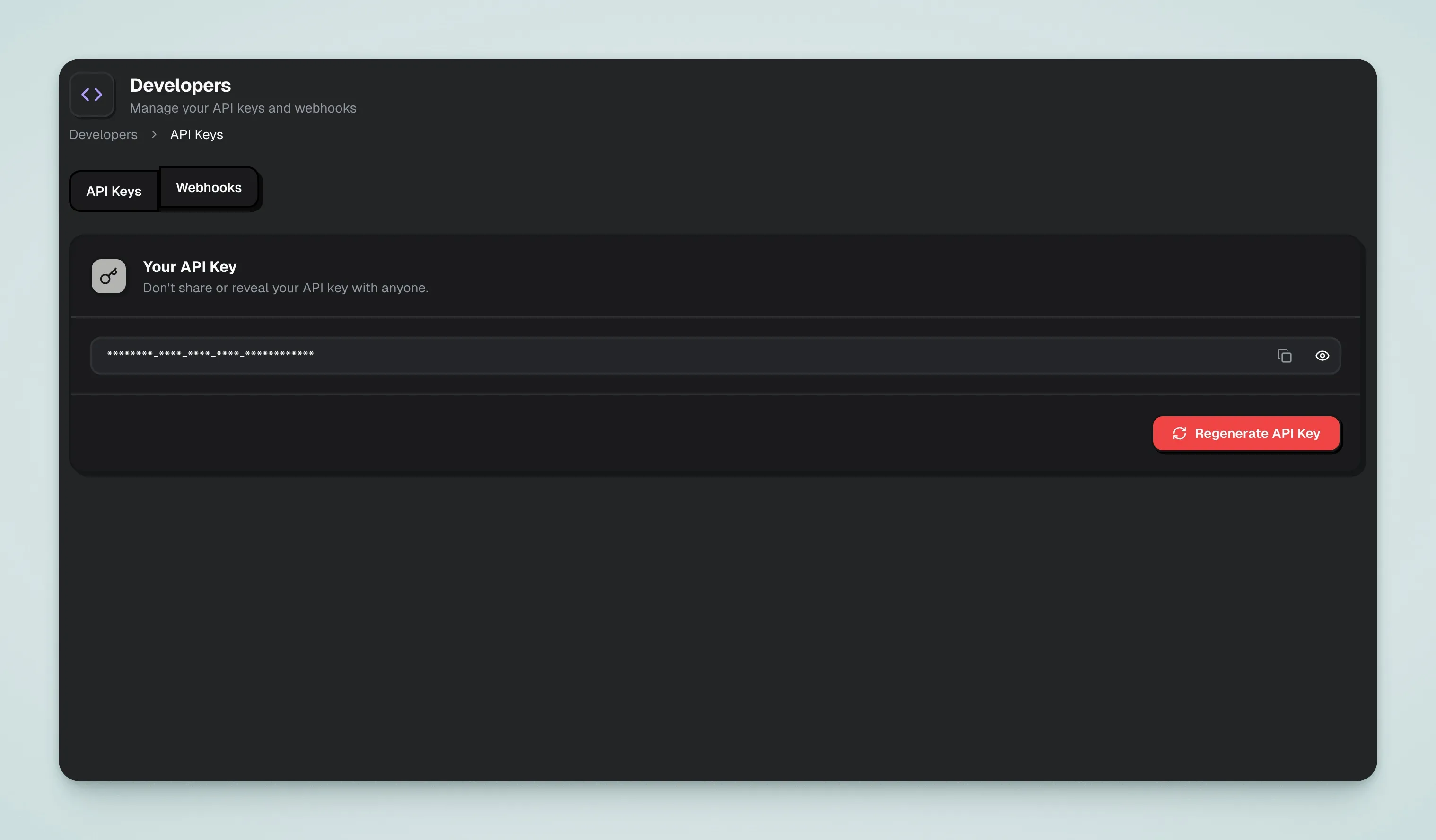
- Copy the
X API Keyto.env
CREEM_X_API_KEY=creem_xxxYou can also enter it in the admin config panel:
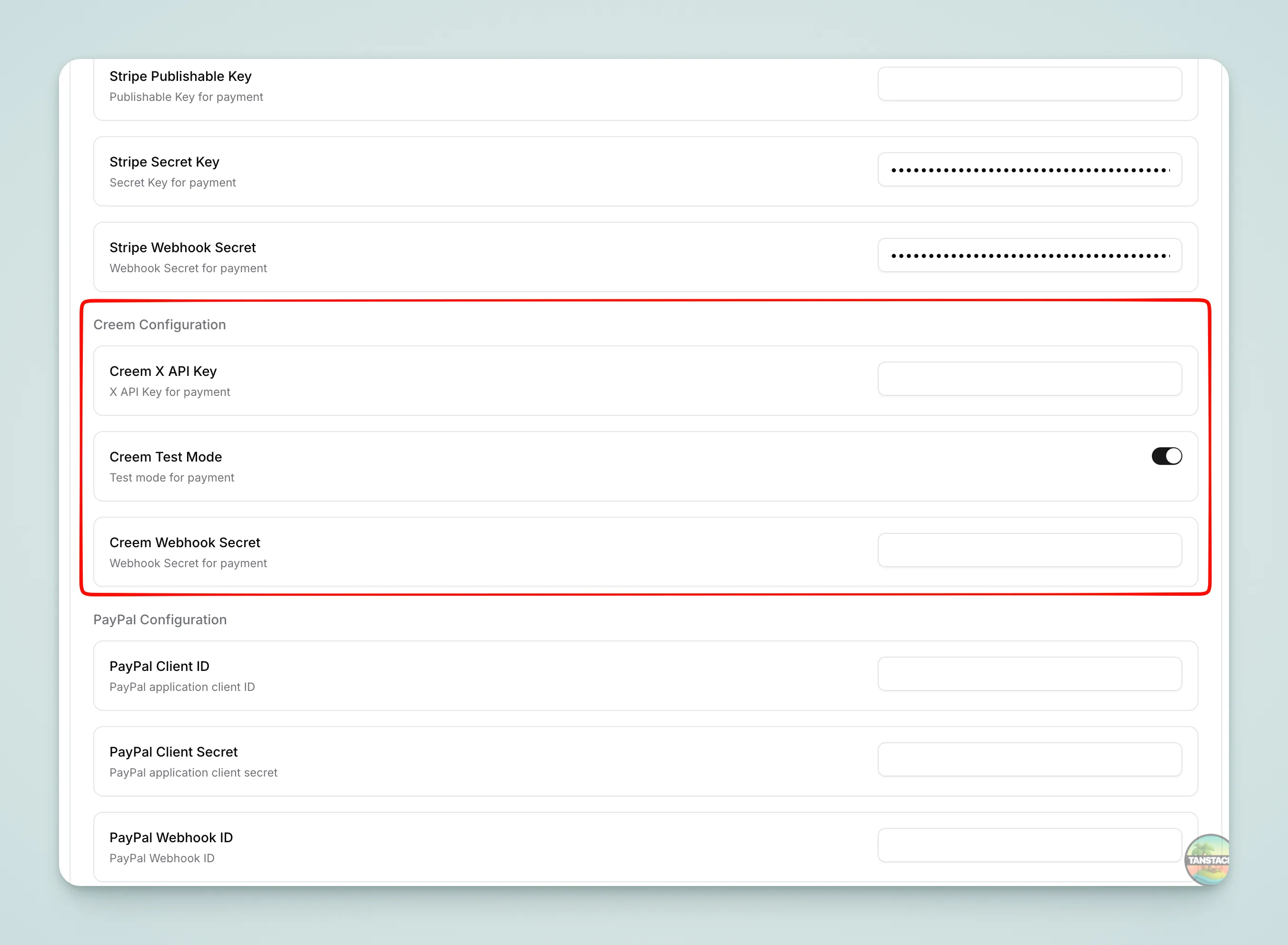
Warning
CREEM_X_API_KEY is sensitive information — do not commit it to your code repository.
Configure Webhook
Add an endpoint on the Dashboard's Webhooks page:
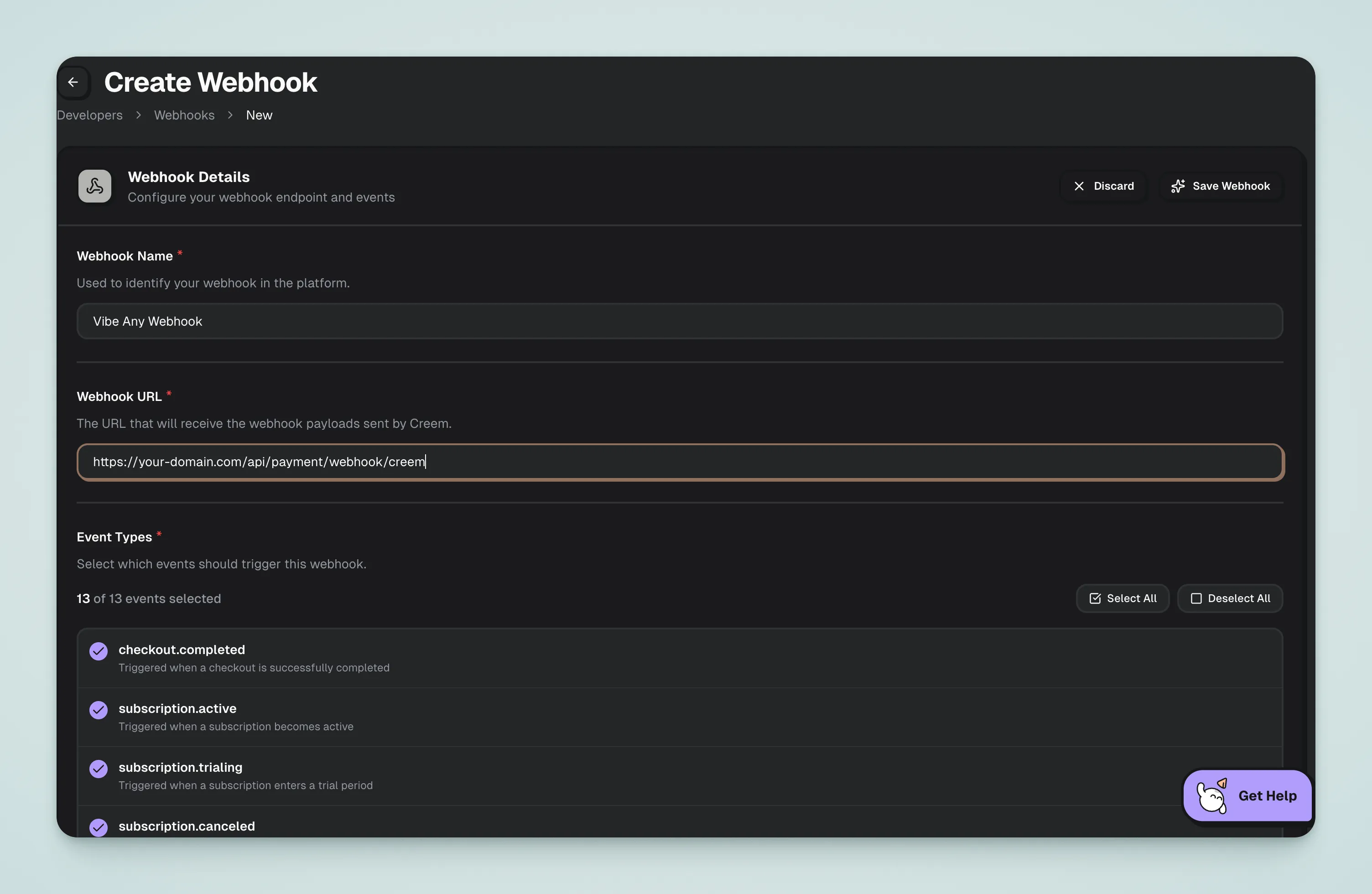 Listen for the following events:
checkout.completedsubscription.activesubscription.canceledsubscription.paid
You can select all events, but VibeAny only processes the ones listed above. Enter the callback URL:
https://your-domain.com/api/payment/webhook/creem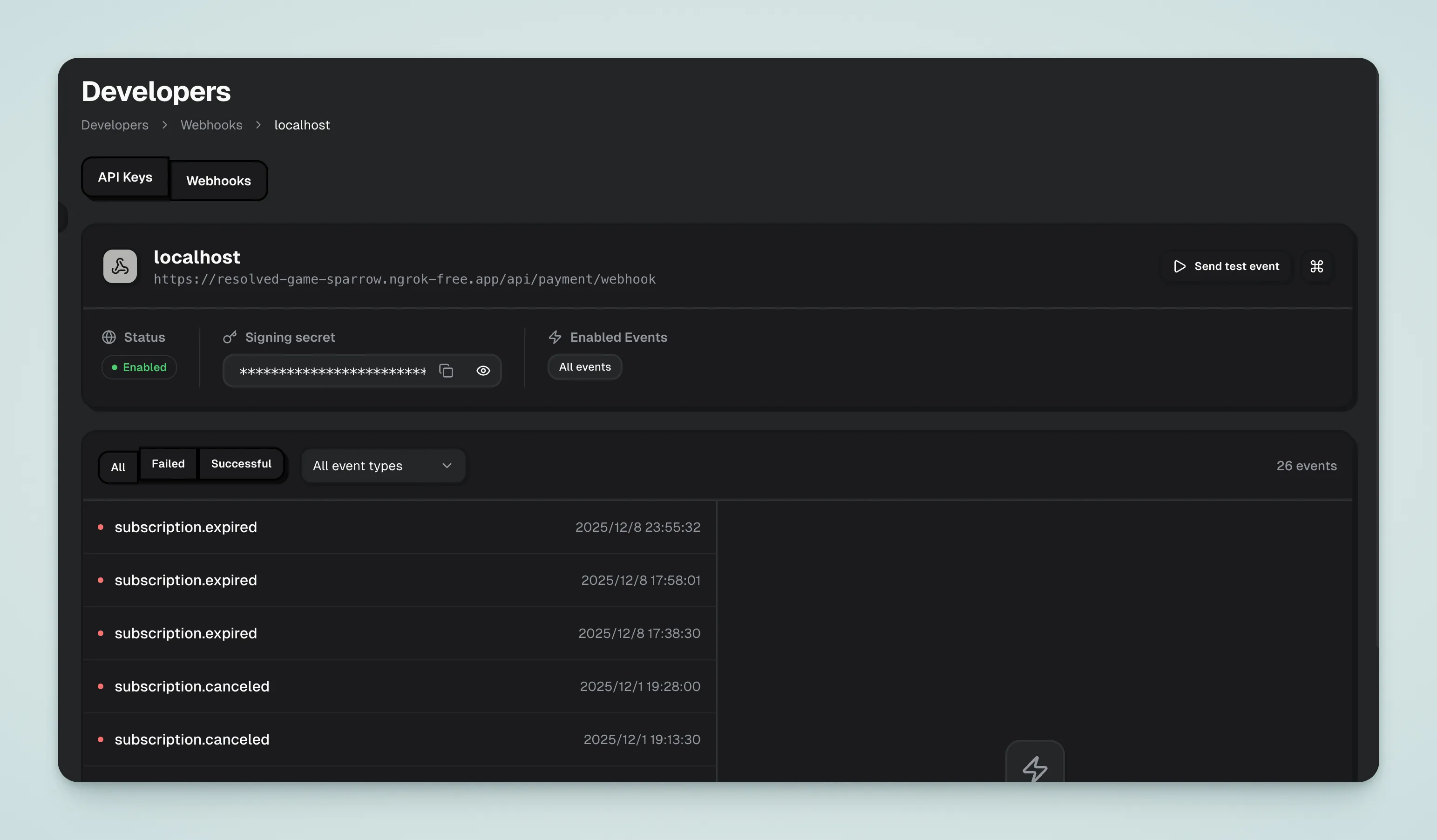
Copy the Webhook Secret to .env:
CREEM_WEBHOOK_SECRET=whsec_xxxTest Mode
Creem provides a test environment — no real charges are made when enabled.
Enable test mode in Creem:
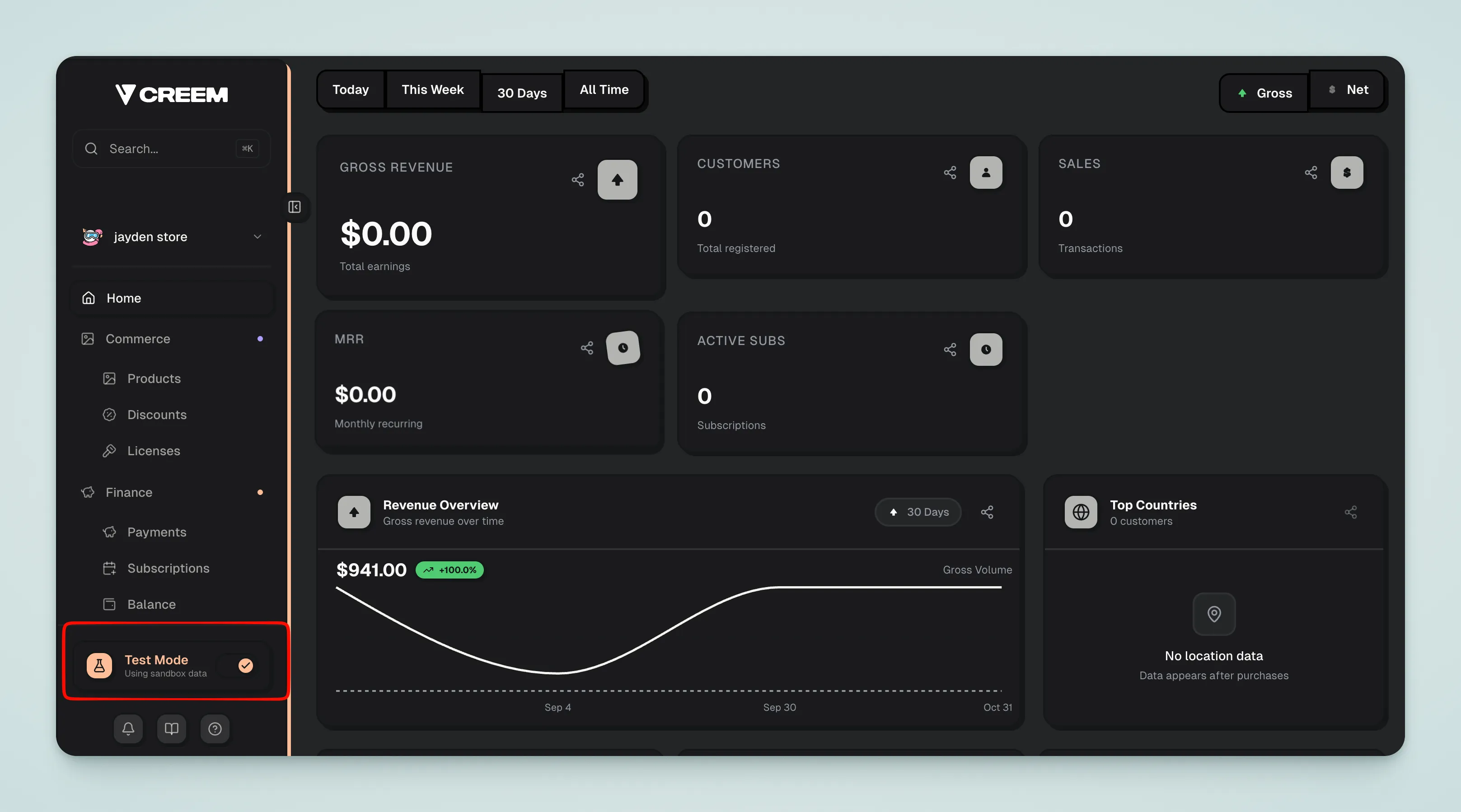
Set in .env, or configure in the admin panel:
CREEM_TEST_MODE=trueIn test mode, you can use Creem's test cards for payment testing. See Creem Test Documentation for test card numbers.
Testing Live Payments with a Reverse Proxy
Visit Ngrok
Go to Ngrok and sign up for an account
Download and Configure Ngrok
Follow the official setup guide to download and configure
Start Ngrok
ngrok http 3377Copy the public URL from the terminal output
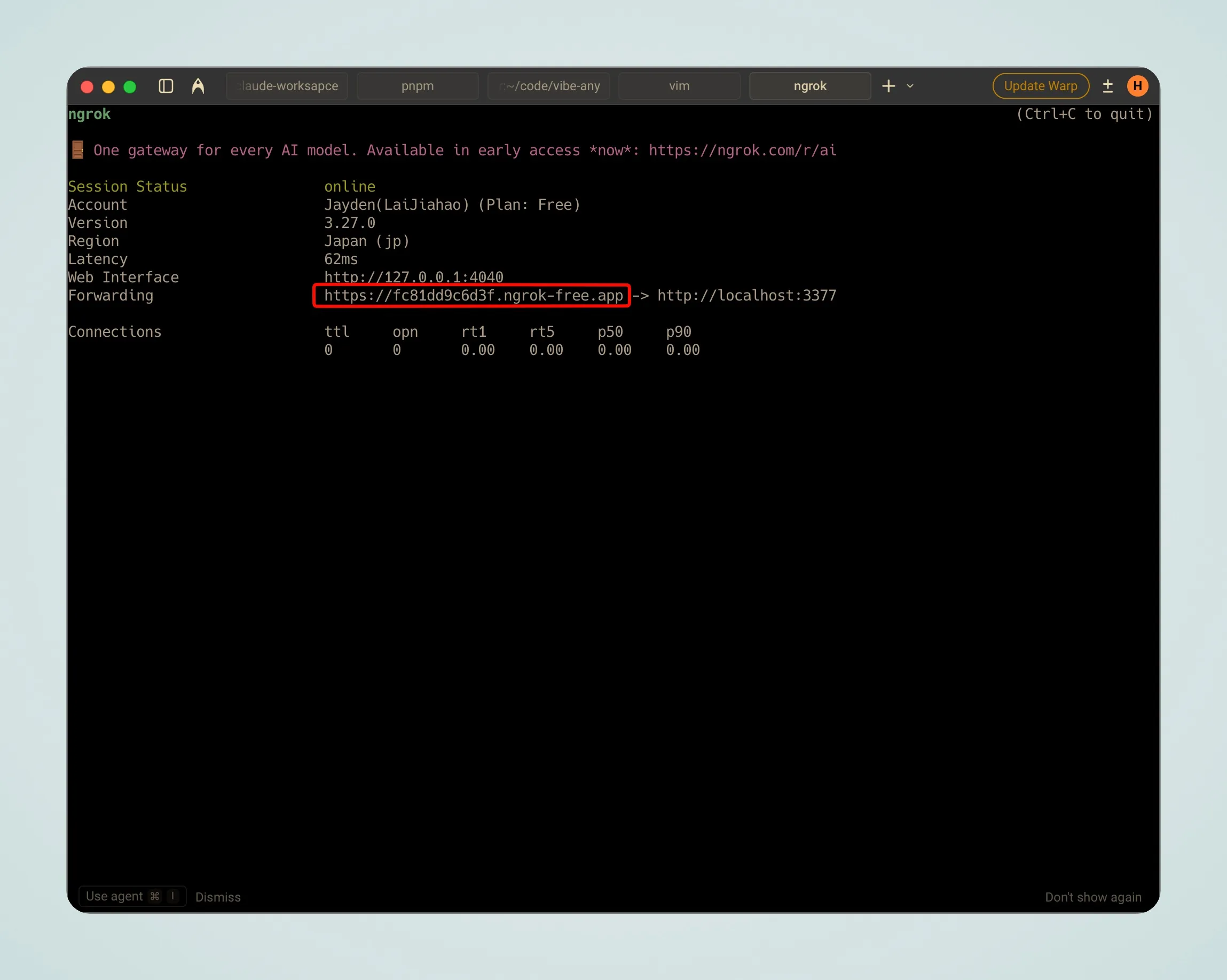 Your callback URL will be:
https://xxx.app/api/payment/webhook/creemWarning
The ngrok public URL changes each restart — you'll need to update the Webhook URL in the Creem Dashboard accordingly. For a static domain, get one from ngrok and use --url= to specify it.
Verify Configuration
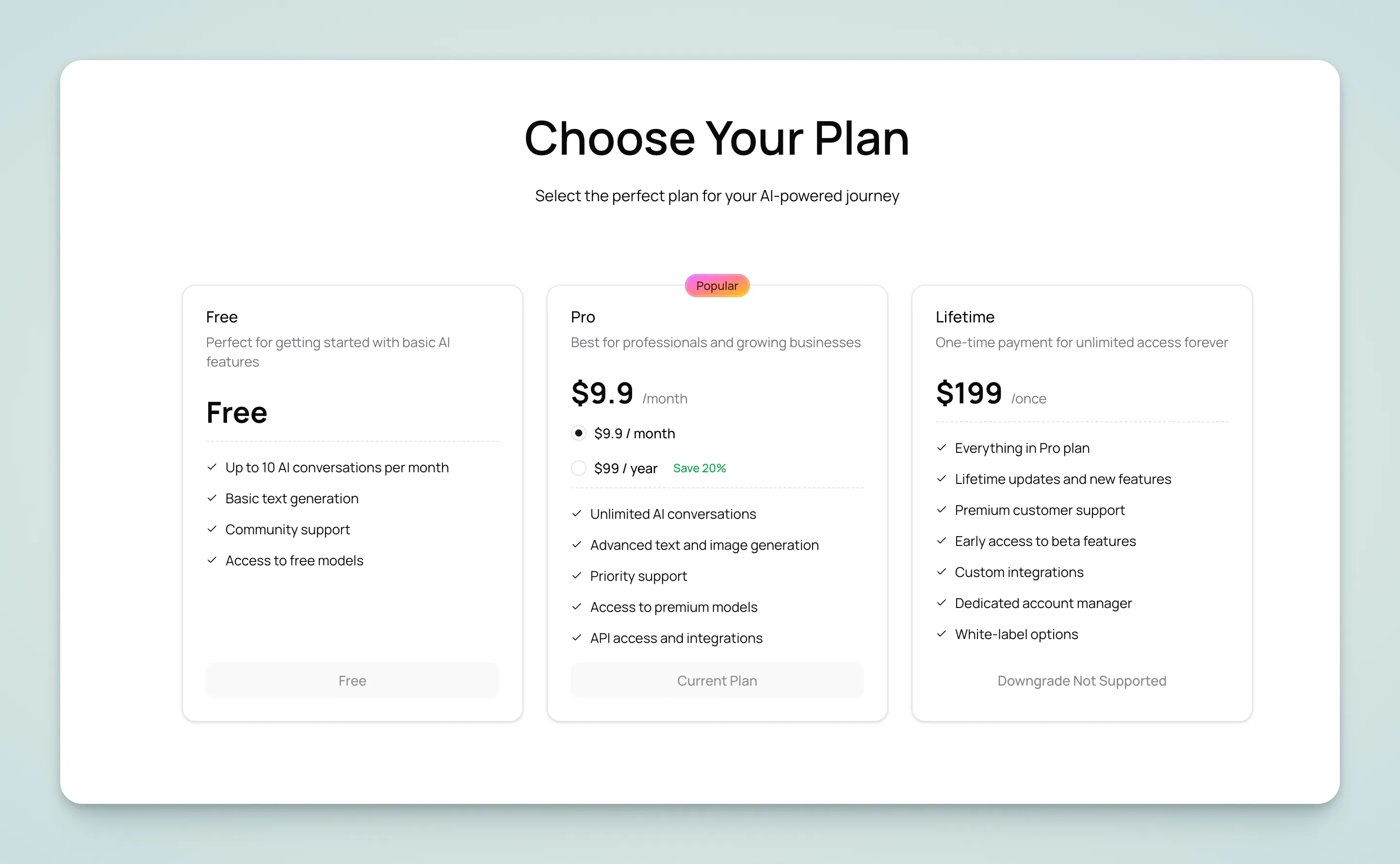
Open the homepage, scroll down to the pricing section, and click the purchase button. If it redirects to the Creem Checkout page, the configuration is successful.
Configure Pricing
-
Create a Product in the Creem Dashboard
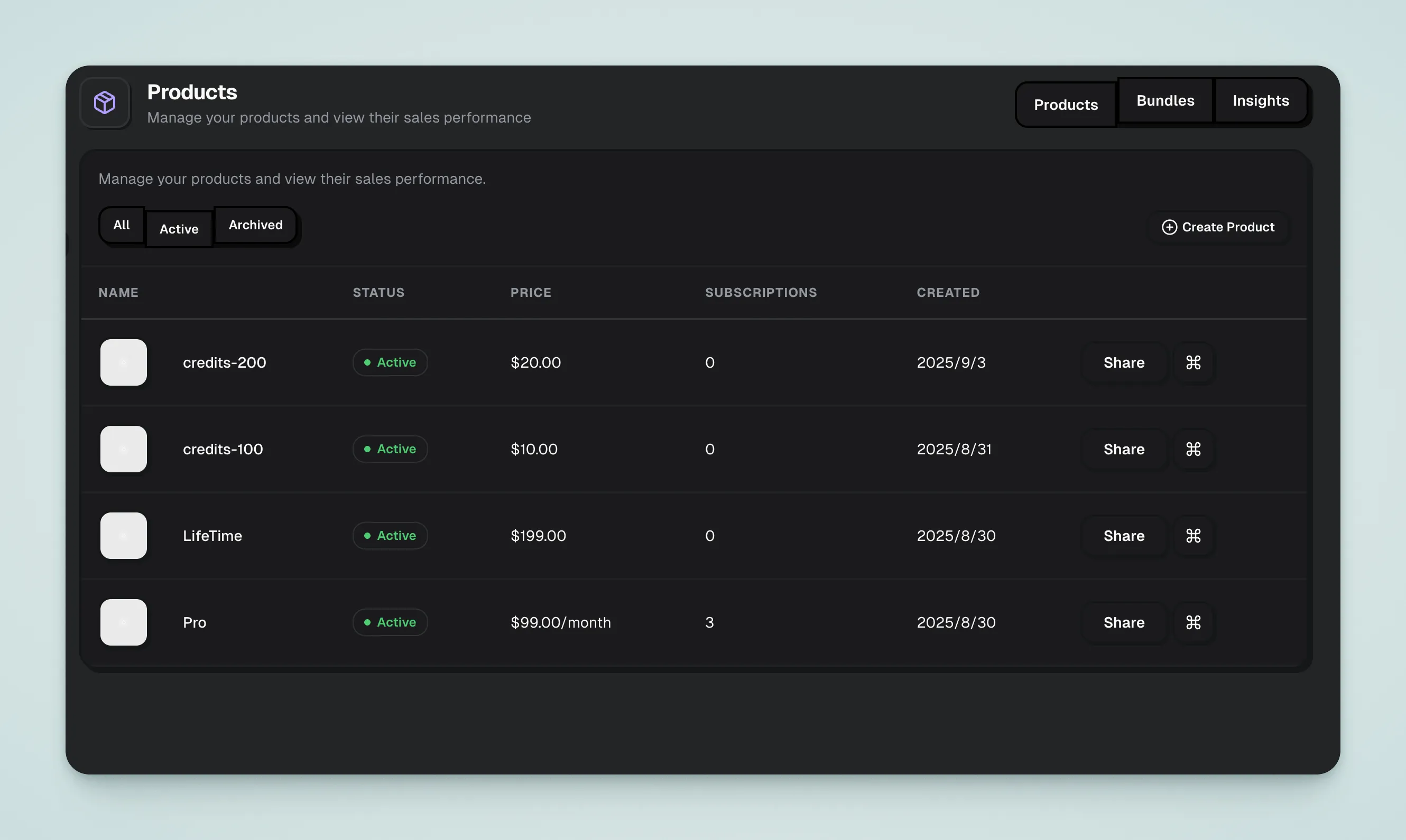
-
Copy the Product ID to
.env:
VITE_CREEM_PRO_MONTHLY_PRODUCT_ID=prod_xxx
VITE_CREEM_LIFETIME_PRODUCT_ID=prod_xxx- Modify
src/config/payment-config.ts— amounts and intervals must match the Creem Dashboard:
export const paymentConfig: PlanWithPrice[] = [
  {
    id: "pro",
    planType: "subscription",
    credit: {
      amount: 100,
      expireDays: 31,
    },
    prices: [
      {
        priceId: import.meta.env.VITE_CREEM_PRO_MONTHLY_PRODUCT_ID!,
        amount: 990,              // In cents, 990 = $9.90
        currency,
        interval: "month",
      },
    ],
    display: {
      isRecommended: true,
      group: "subscription",
    },
  },
  {
    id: "lifetime",
    planType: "lifetime",
    prices: [
      {
        priceId: import.meta.env.VITE_CREEM_LIFETIME_PRODUCT_ID!,
        amount: 19900,
        currency,
      },
    ],
    display: {
      group: "one-time",
    },
  },
]
Field Reference
| Field | Description |
|---|---|
id | Plan identifier, used to look up the plan in code |
planType | free / subscription / lifetime |
credit.amount | Credits granted when subscription activates |
credit.expireDays | Credit expiration days, omit for no expiration |
priceId | Creem Product ID, copied from Dashboard |
amount | Price in cents, 990 = $9.90 |
interval | Billing cycle, month or year |
display.isRecommended | Whether to show the recommended label |
display.group | Group identifier for UI categorization |