Stripe
Stripe is a leading global online payment platform supporting 100+ payment methods, subscription billing, and fraud protection
Quick Start
Create a Stripe Account
Go to Stripe and sign up for an account.
Get API Keys
- Open the Stripe Dashboard, click
Developers→API Keys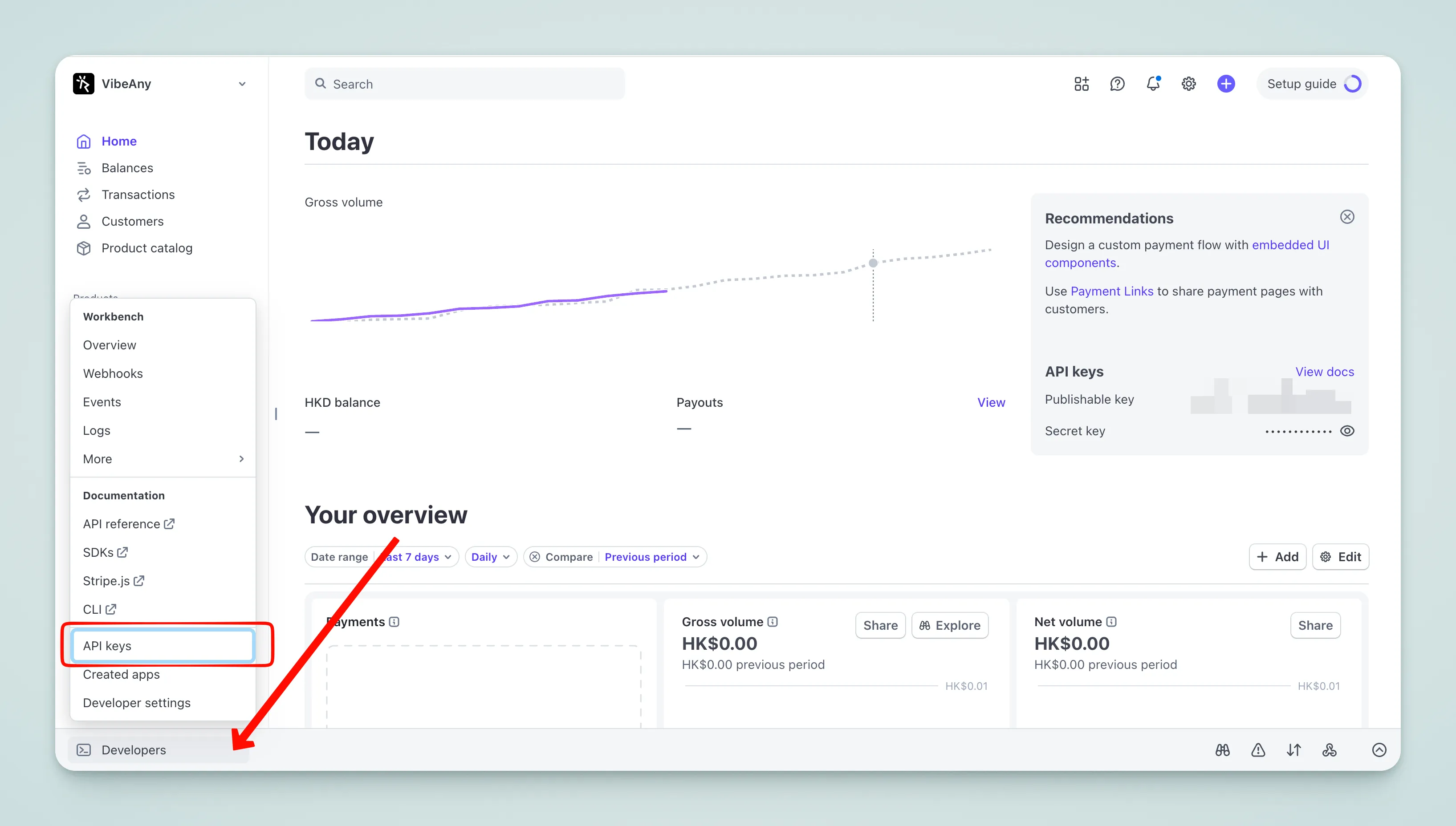
- Create a key
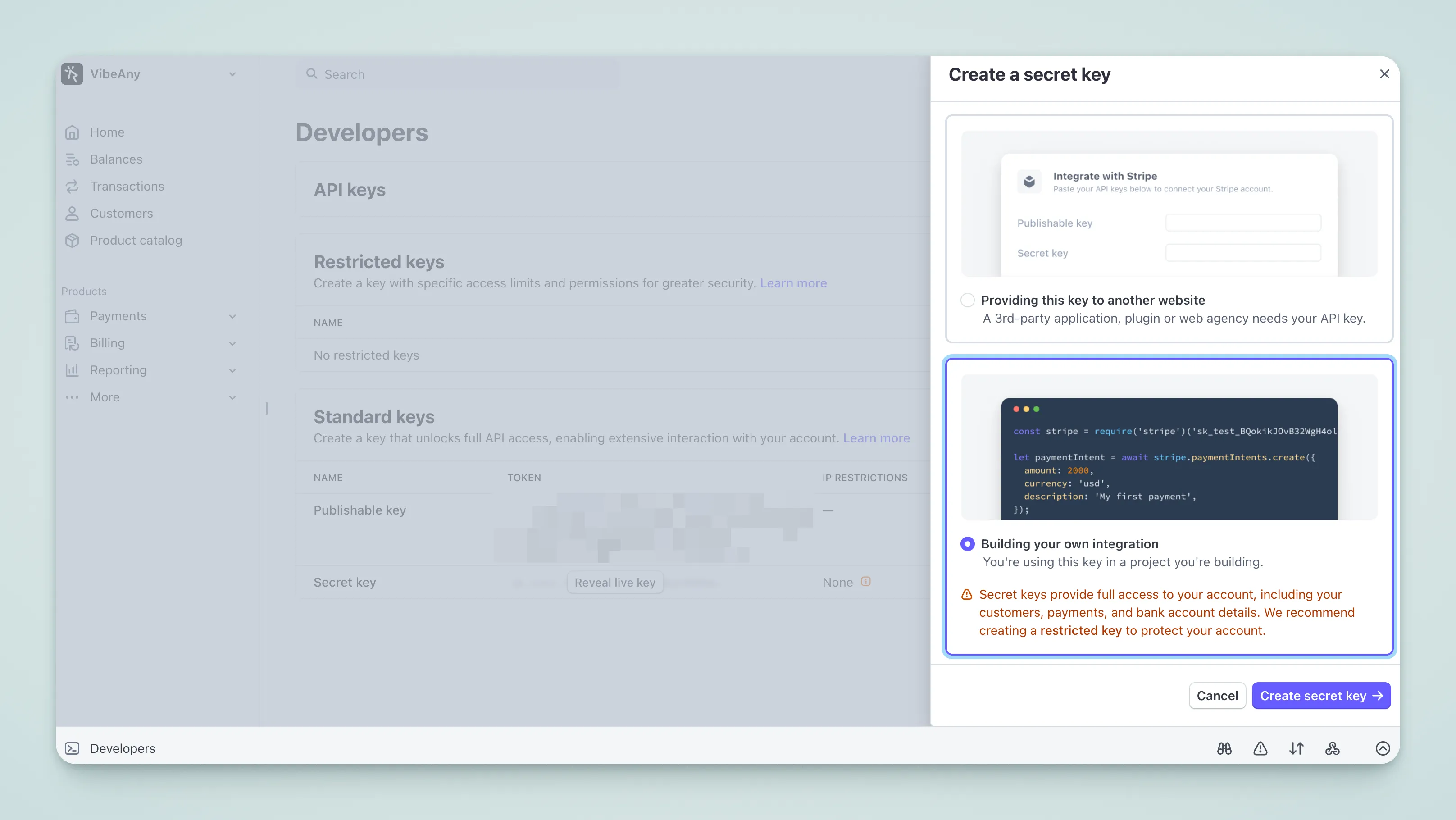
- Copy the keys to
.env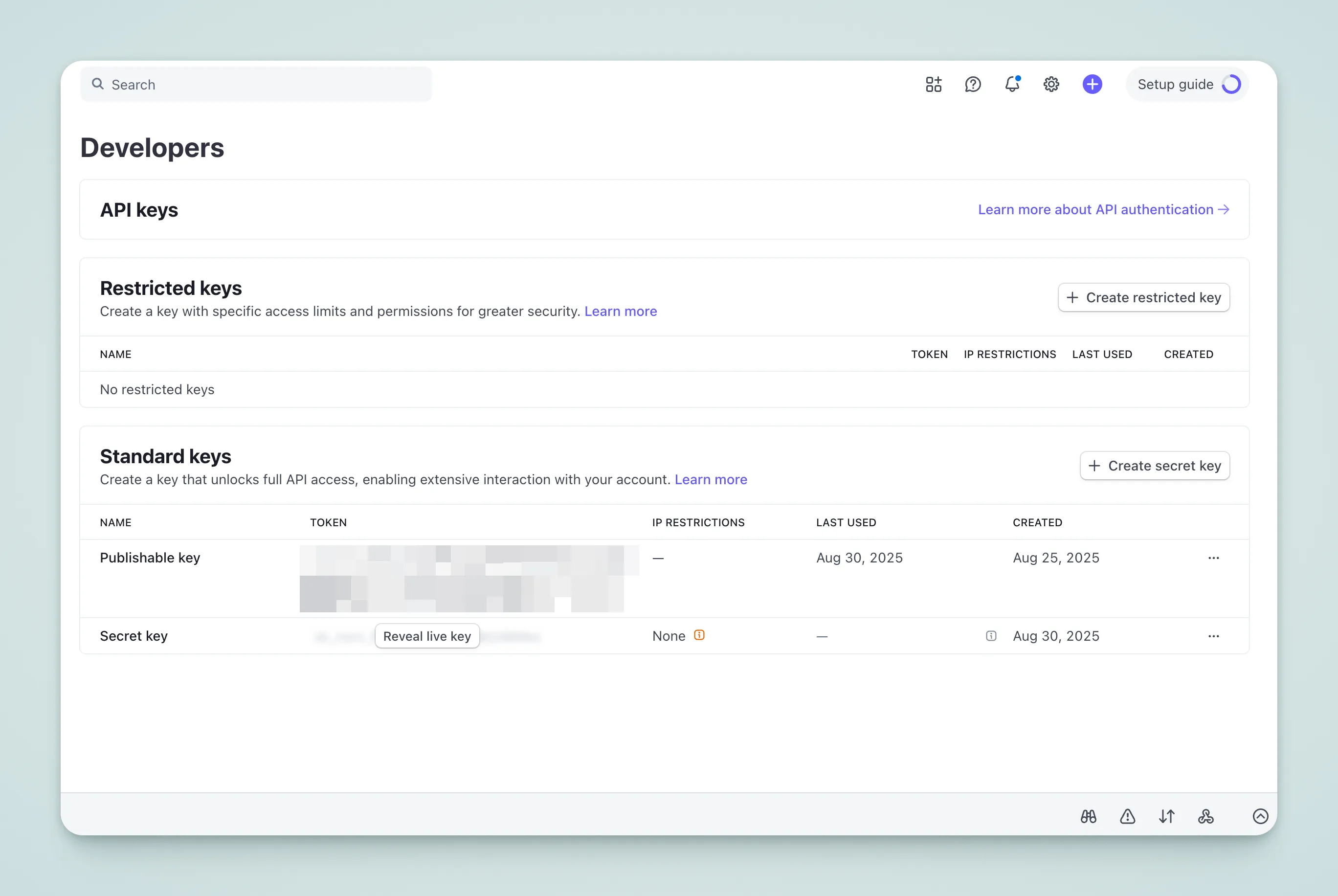
VITE_STRIPE_PUBLISHABLE_KEY=pk_test_xxx
STRIPE_SECRET_KEY=sk_test_xxx
You can also enter them in the admin config panel:
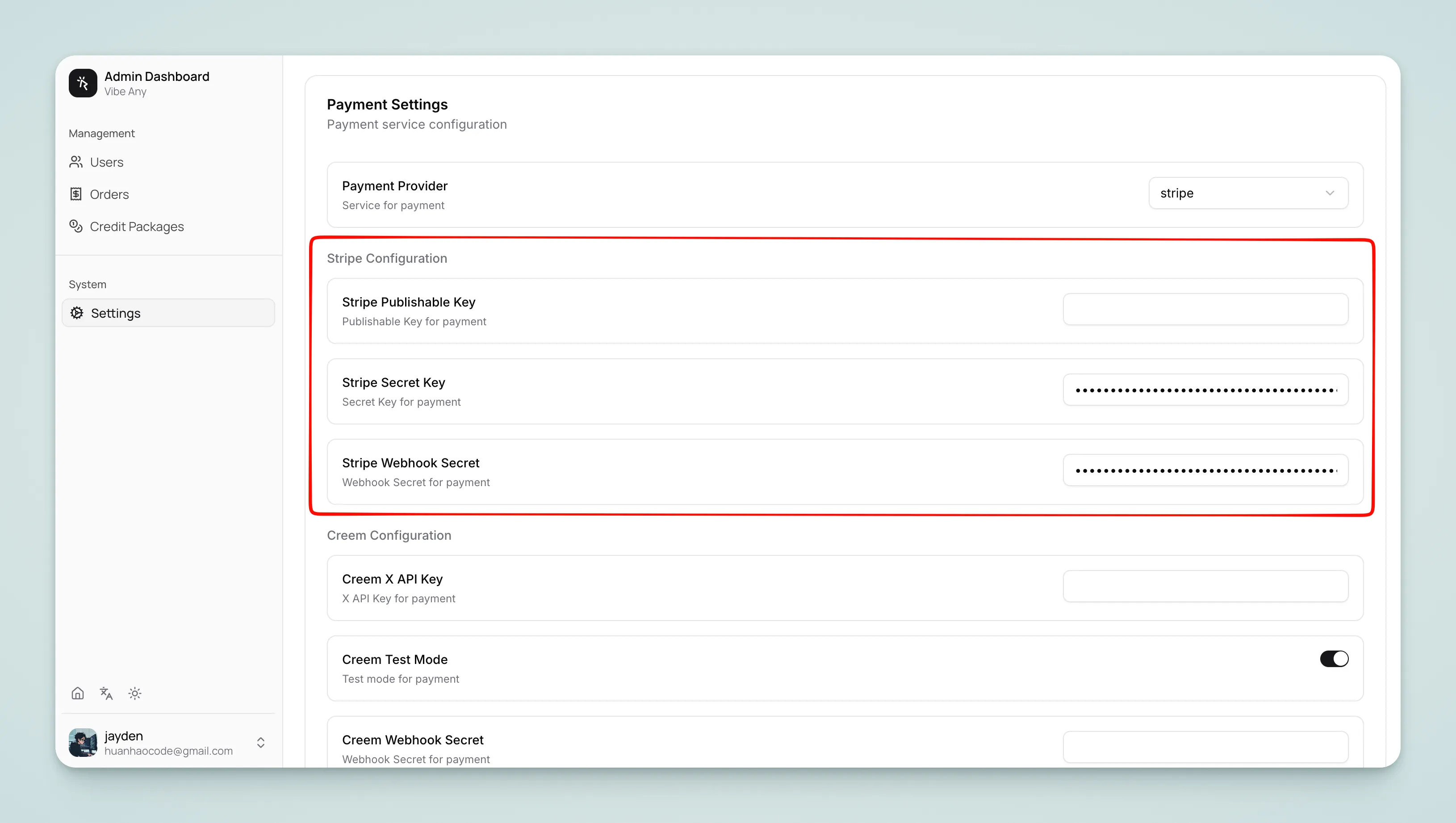
Warning
STRIPE_SECRET_KEY is sensitive information — do not commit it to your code repository.
Configure Webhook
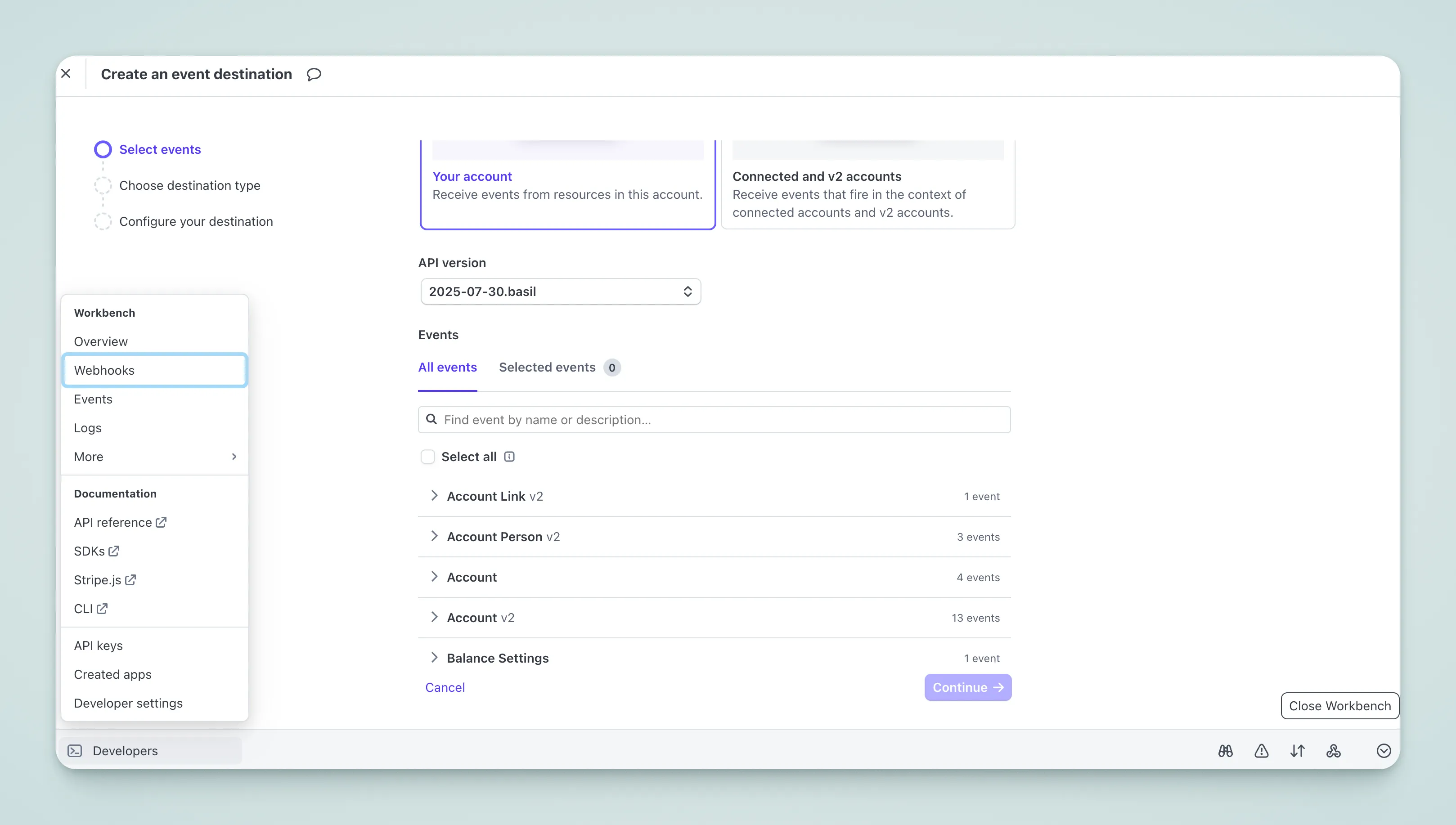 Listen for the following events:
checkout.session.completedinvoice.payment_succeededinvoice.payment_failedcustomer.subscription.createdcustomer.subscription.updatedcustomer.subscription.deleted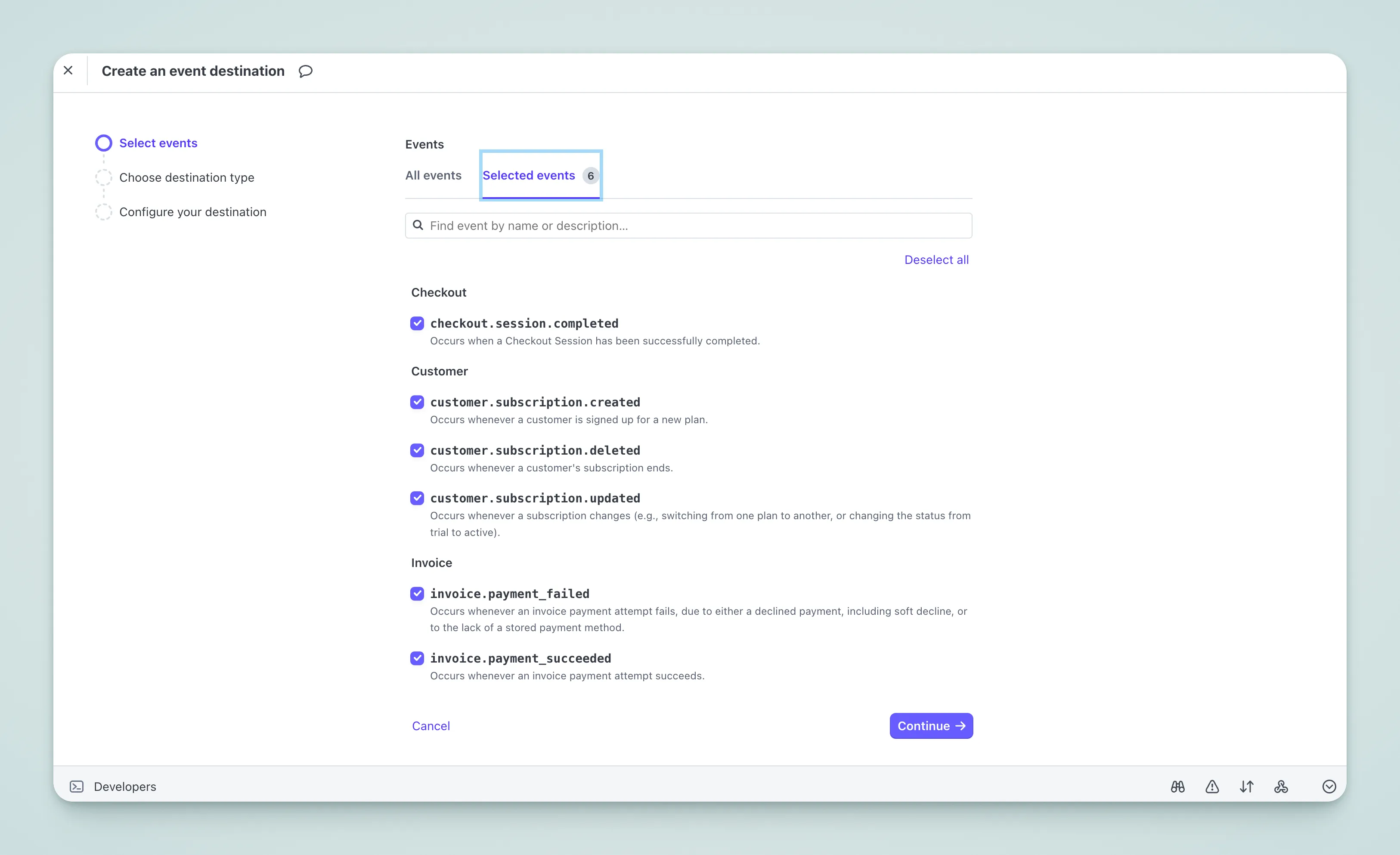 Enter your callback URL:
https://your-domain.com/api/payment/webhook/stripe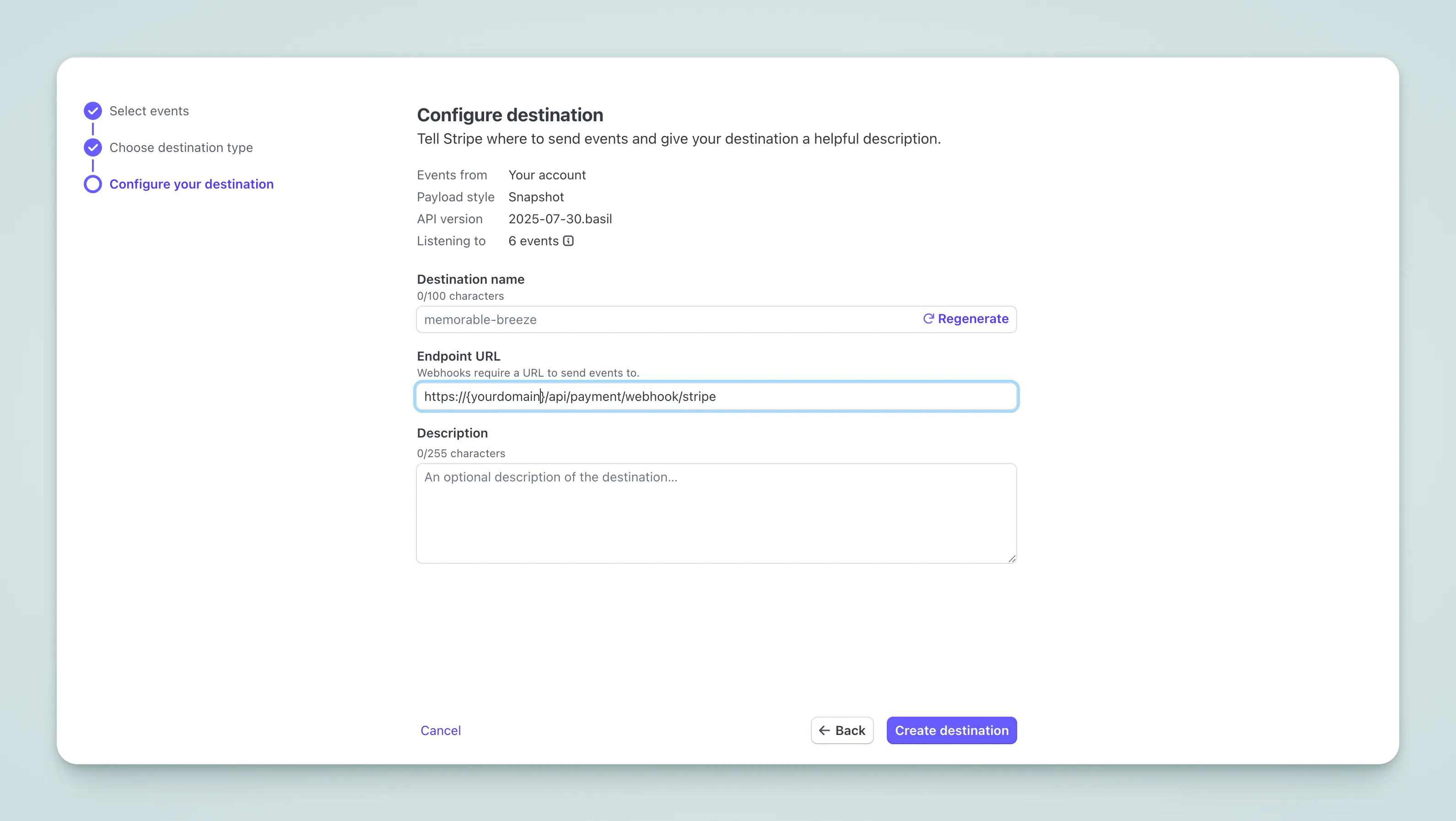
Copy the Webhook Secret to .env, or configure it in the admin panel:
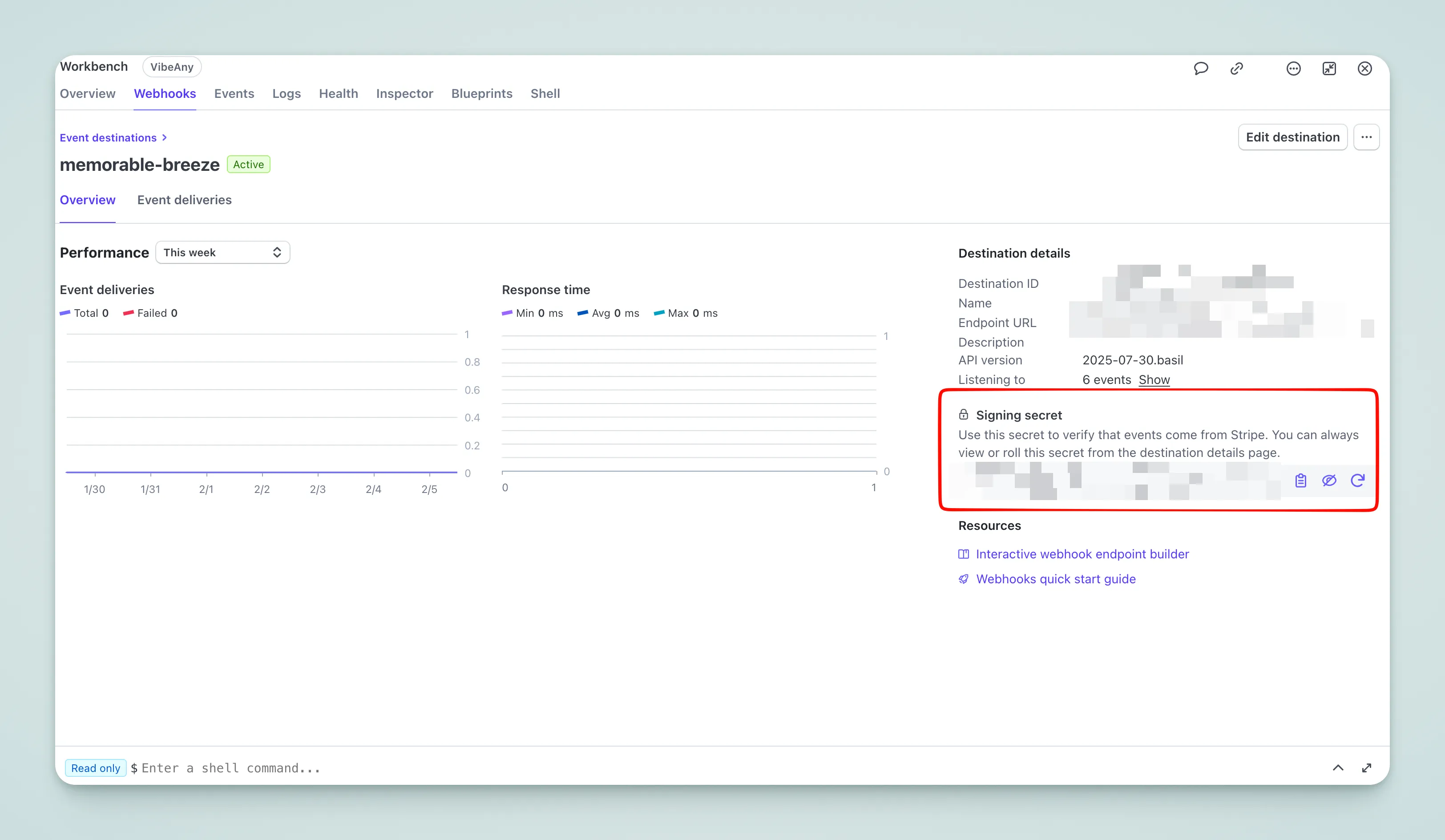
STRIPE_WEBHOOK_SECRET=whsec_xxxFor local development, use sandbox mode — see below.
Sandbox Mode
Used for local testing — no real charges are made.
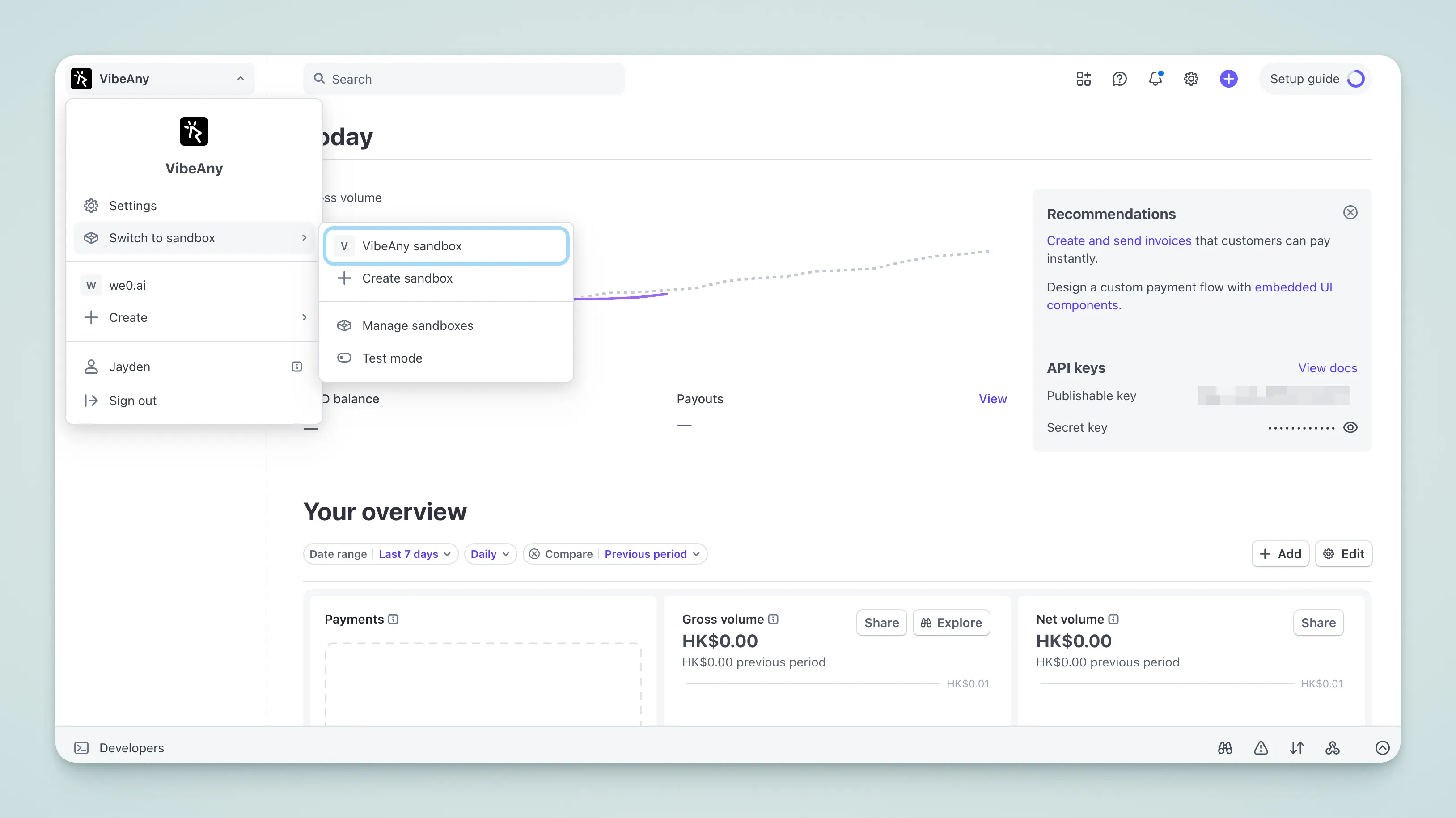
- Switch to Test Mode in the Dashboard and get the test environment's
Publishable KeyandSecret Key - Download the Stripe CLI and start local forwarding:
stripe listen --forward-to localhost:3377/api/payment/webhook/stripe- Copy the Webhook Secret from the terminal output to
.env, or configure it in the admin panel: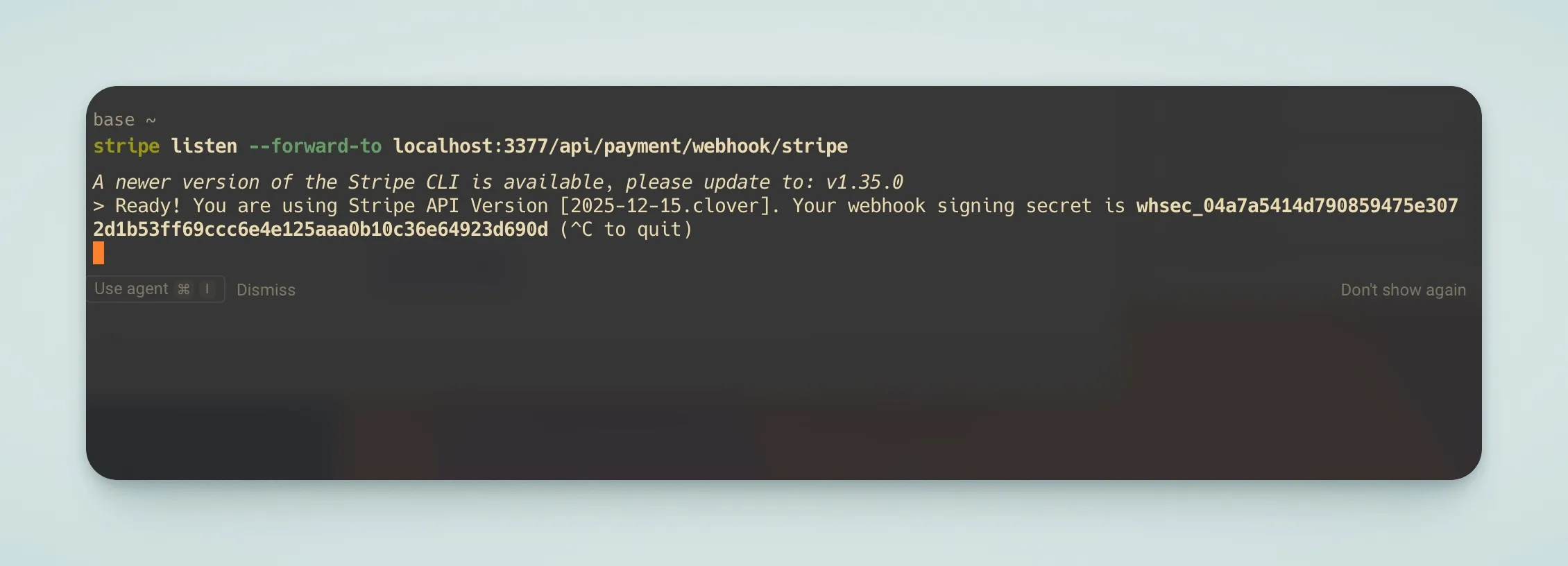
STRIPE_WEBHOOK_SECRET=whsec_xxxOnce configured, you can test payments locally using test cards: Stripe Test Cards
Testing Live Payments with a Reverse Proxy
Visit Ngrok
Go to Ngrok and sign up for an account
Download and Configure Ngrok
Follow the official setup guide to download and configure Ngrok
Start Ngrok
ngrok http 3377Copy the public URL from the terminal output
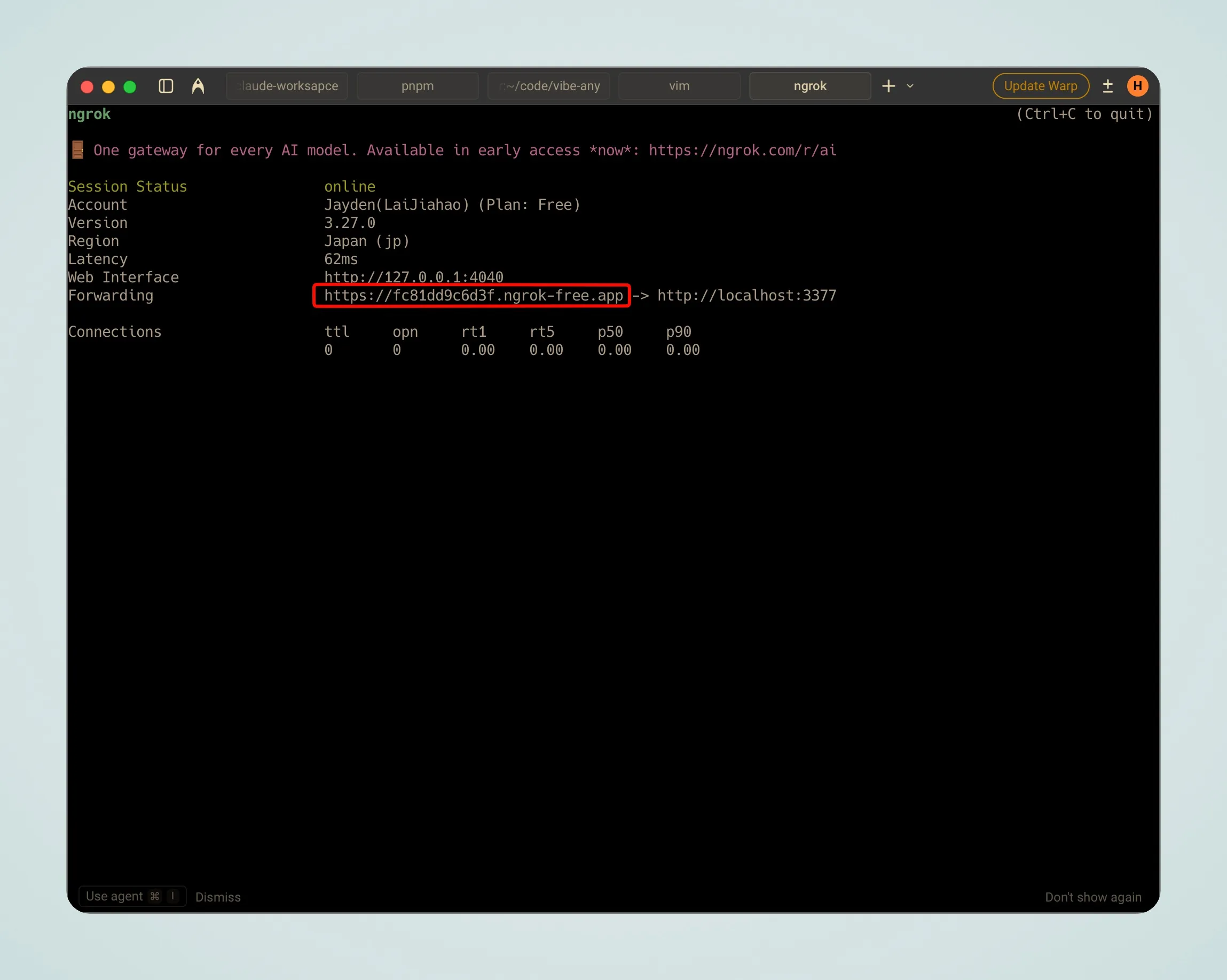 Your callback URL will be:
https://xxx.app/api/payment/webhook/stripeWarning
Do not use ngrok in production. The public URL changes each time ngrok restarts — you'll need to update the callback URL. For a static URL, get a fixed domain from ngrok and use --url= to specify it.
Verify Configuration
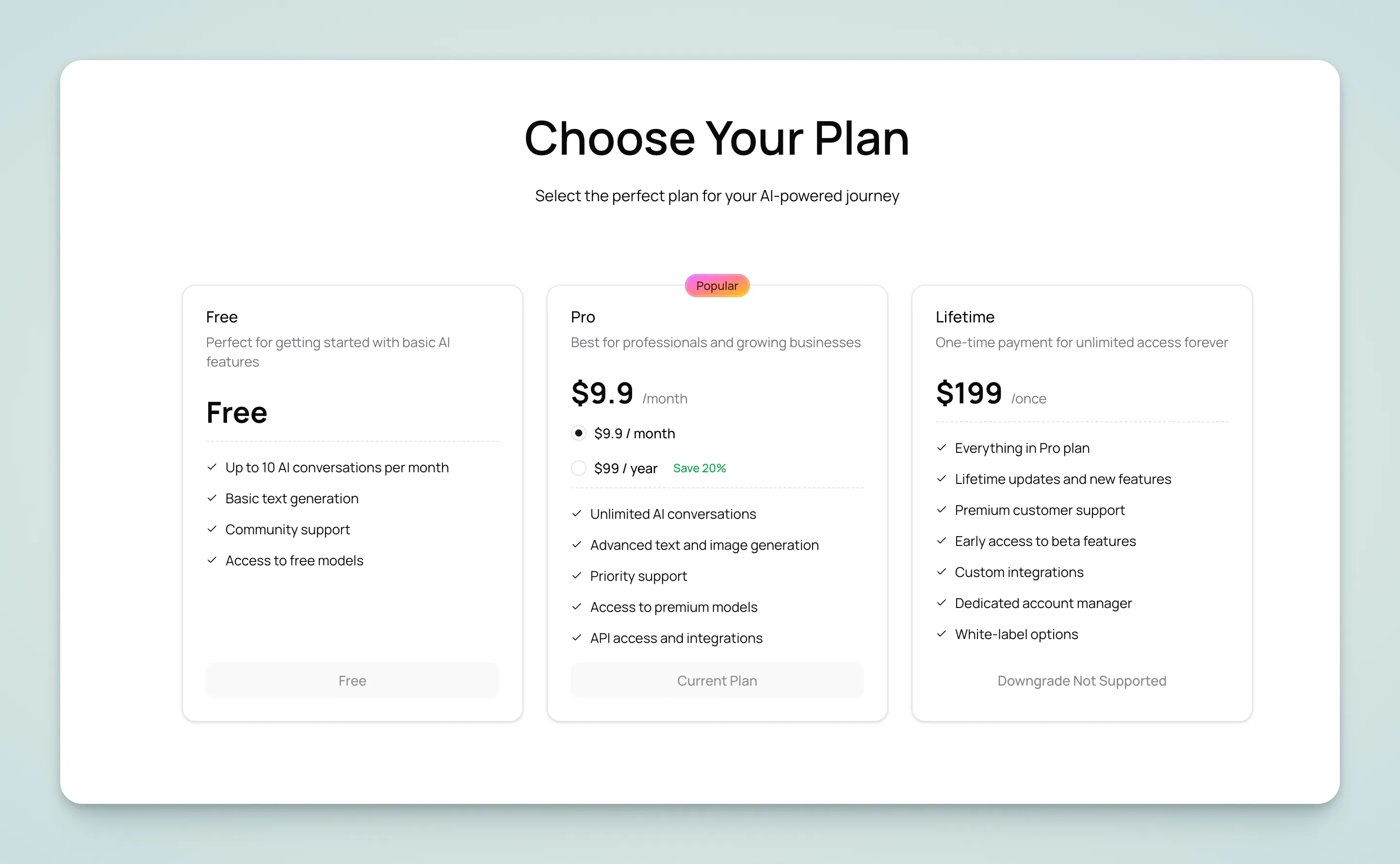
Open the homepage, scroll down to the pricing section, and click the purchase button. If it redirects to the Stripe Checkout page, the configuration is successful.
Configure Pricing
-
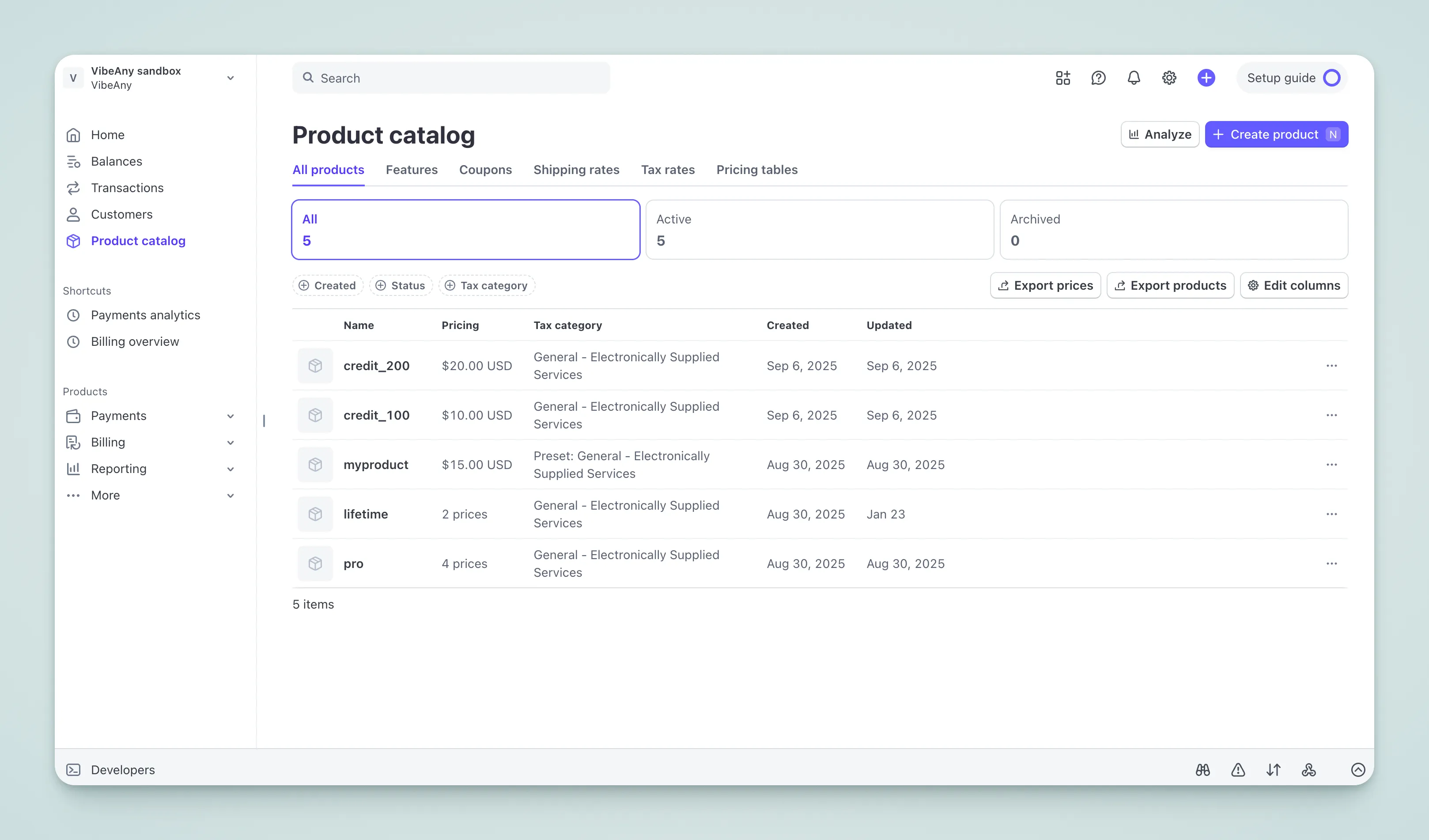
Create a Product in the Stripe Dashboard and add a Price
-
Copy the Price ID (format
price_xxx) to.env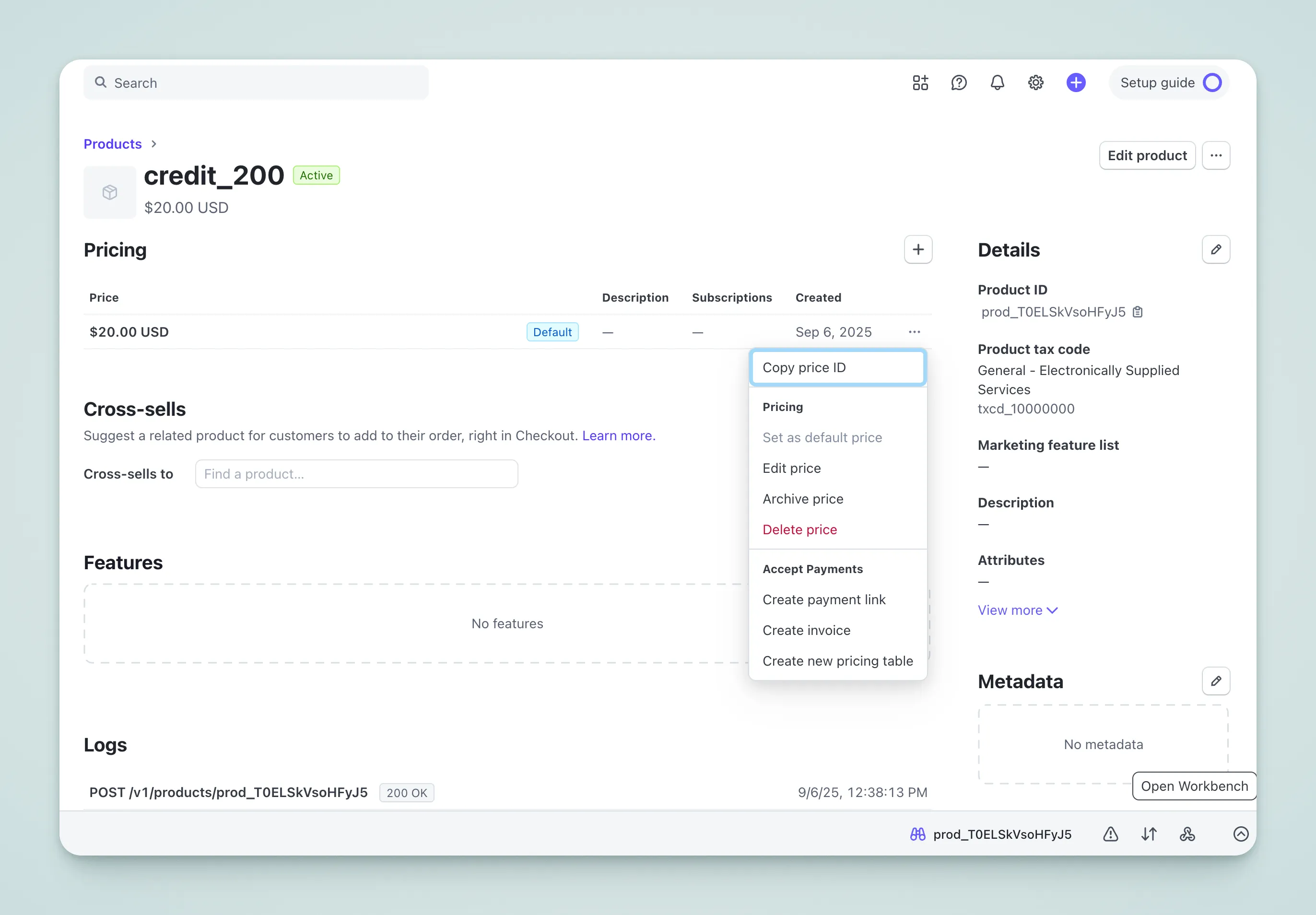
-
Copy the Price ID (format
price_xxx) to.env. You can rename the environment variables as needed, but they must match the code:
VITE_STRIPE_PRO_MONTHLY_PRICE_ID=price_xxx
VITE_STRIPE_PRO_YEARLY_PRICE_ID=price_xxx
VITE_STRIPE_LIFETIME_PRICE_ID=price_xxx- Modify
src/config/payment-config.ts— amounts and intervals must match the Stripe Dashboard:
export const paymentConfig: PlanWithPrice[] = [
  {
    id: "pro",                    // Plan identifier, used in code
    planType: "subscription",     // free | subscription | lifetime
    credit: {
      amount: 100,                // Credits granted per payment
      expireDays: 31,             // Credit expiration days
    },
    prices: [
      {
        priceId: import.meta.env.VITE_STRIPE_PRO_MONTHLY_PRICE_ID!,
        amount: 990,              // In cents, 990 = $9.90
        currency,                 // Currency, read from VITE_CURRENCY
        interval: "month",        // month | year
        trialPeriodDays: 7,       // Trial days (optional)
      },
      {
        priceId: import.meta.env.VITE_STRIPE_PRO_YEARLY_PRICE_ID!,
        amount: 9900,
        currency,
        interval: "year",
      },
    ],
    display: {
      isRecommended: true,        // Show "Recommended" label
      group: "subscription",      // Group, used for UI display
    },
  },
  {
    id: "lifetime",
    planType: "lifetime",         // One-time purchase
    prices: [
      {
        priceId: import.meta.env.VITE_STRIPE_LIFETIME_PRICE_ID!,
        amount: 19900,
        currency,
      },
    ],
    display: {
      originalPrice: 29900,       // Original price (strikethrough)
      group: "one-time",
    },
  },
]
Field Reference
| Field | Description |
|---|---|
id | Plan identifier, used to look up the plan in code |
planType | free / subscription / lifetime |
credit.amount | Credits granted when subscription activates |
credit.expireDays | Credit expiration days, omit for no expiration |
priceId | Stripe Price ID, copied from Dashboard |
amount | Price in cents, 990 = $9.90 |
interval | Billing cycle, month or year |
trialPeriodDays | Free trial days |
display.isRecommended | Whether to show the recommended label |
display.originalPrice | Original price for strikethrough display |
display.group | Group identifier for UI categorization |
RBAC
Role-Based Access Control system with roles, permissions, wildcards, conditional rules, and a CLI management tool
Creem
Creem is a payment platform for SaaS and digital products that automatically handles global tax compliance as a Merchant of Record, supporting subscriptions and License Key management